
The sending and receiving of emails have become an integral part of our day-to-day lives. Around 2.4 billion emails are sent every second and the average inbox contains 200 emails! Whilst a quick and efficient communication method, email comes with its own security concerns.
Having worked with different organisations either on internal security teams or providing managed security services, I have seen firsthand how common email-based attacks such as phishing and spoofing are and how devastating the consequences can be.
Whilst most IT professionals have heard of SPF, DKIM and DMARC, in my experience, many organisations still need to implement these authentication controls or have done so incorrectly.
In this article, I want to give a high-level overview of these authentication methods and the importance of enabling them, how to set them up, and how they can significantly bolster your email security.
SPF: Sender Policy Framework
SPF is an email authentication protocol designed to prevent email spoofing. Spoofing is a technique attackers use to impersonate a legitimate sender, making it appear as if the email has come from a trustworthy source.
SPF works by determining a list of allowed domains, hostnames or IP addresses that can send emails from your domain; think of it as a return address on a parcel that lets the receiver know who sent it. As well as preventing an attacker from spoofing emails from your domain, it can help prevent your emails from being flagged as spam, improving deliverability.
SPF is setup by adding a TXT record to your domains DNS (Domain Name Systems) settings. An example of which is below:

Let’s break this example down:
v: This tag lists the version of the SPF record and must always be at the front.
a: Points to the A record of the current domain and allows you to make changes to your DNS without updating the SPF.
ip4: Specifies IPv4 addresses that emails can originate from.
include: This tag is often applied if you use any third-party services to send mail. My example specifies that IP addresses associated with mcsv.com (MailChimp) can send mail on behalf of your domain.
~all: This tag must go at the end of the record and tells the recipient what to do with the mail if there is no match for your SPF record.
If you are unsure of how to setup your own SPF record, there are plenty of online tools available that can guide you through the process, such as MXToolbox.
DKIM: DomainKeys Identified Mail
DKIM enhances SPF by using public-key encryption to add a digital signature to the email header, verifying the sender’s authenticity and providing assurance that the contents of the email have not been tampered with in transit.
First to set up DKIM, generate a public-private key pair; the tool used to do this will depend on your Operating System. The public key is then advertised in your domain’s DNS settings as a TXT record. The private key then remains with your mail server. When you send an email, the recipient’s mail server uses the public key to verify the email’s signature.
Below is an example DKIM record:
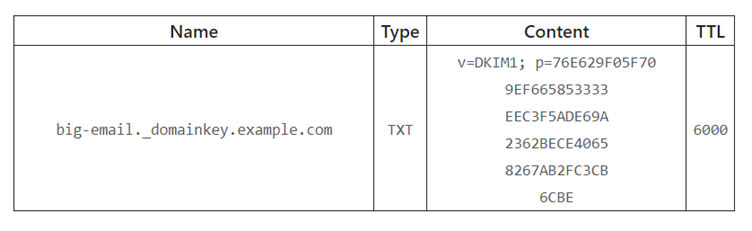
You can find further information on the setup of DKIM and a breakdown of the above example here.
DMARC: (Domain-based Message Authentication, Reporting and Conformance)
DMARC is an email authentication method that builds on the already established SPF and DKIM protocols. It allows domain owners to specify how incoming emails should be handled if they fail SPF and DKIM checks. Policies can be set to quarantine, reject, or monitor these messages.
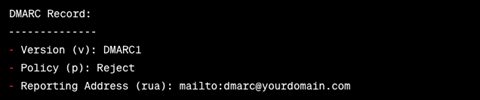
As with the other protocols, DMARC is set up by adding a TXT record to your domains DNS settings and should look like the below:

Let’s again break this example down:
v: Specifies the version of the DMARC record.
p: This tag sets the policy and specifies the action to perform if an email fails the DMARC checks.
rua: Lists the email address where DMARC reports should be sent to. This can either be one of your internal addresses or your hosting company or registrar’s email address.
Here is how you might visualise it:
There are 3 DMARC policies available:
None: No action is taken if an email fails DMARC, but a report will be sent to the specified email address so you can monitor what is happening to your emails.
Quarantine: Any email that fails DMARC will be sent to the recipient’s junk folder.
Reject: All emails that fail DMARC will be rejected and never received by the recipient. The sender may get a bounce back informing them that the mail has been rejected due to the domain owner’s DMARC policy.
Again, various online tools such as MXToolbox can help you to create your own DMARC record.
SPF, DKIM, and DMARC are essential tools to protect organisations from email-based cyber threats. As with any tech solution they are not a silver bullet and they will not guarantee your organisation will be safe from all email-based attacks, but when implemented properly, they can help to reduce the risk of email spoofing, phishing attacks, and data breaches.
